Marketplace
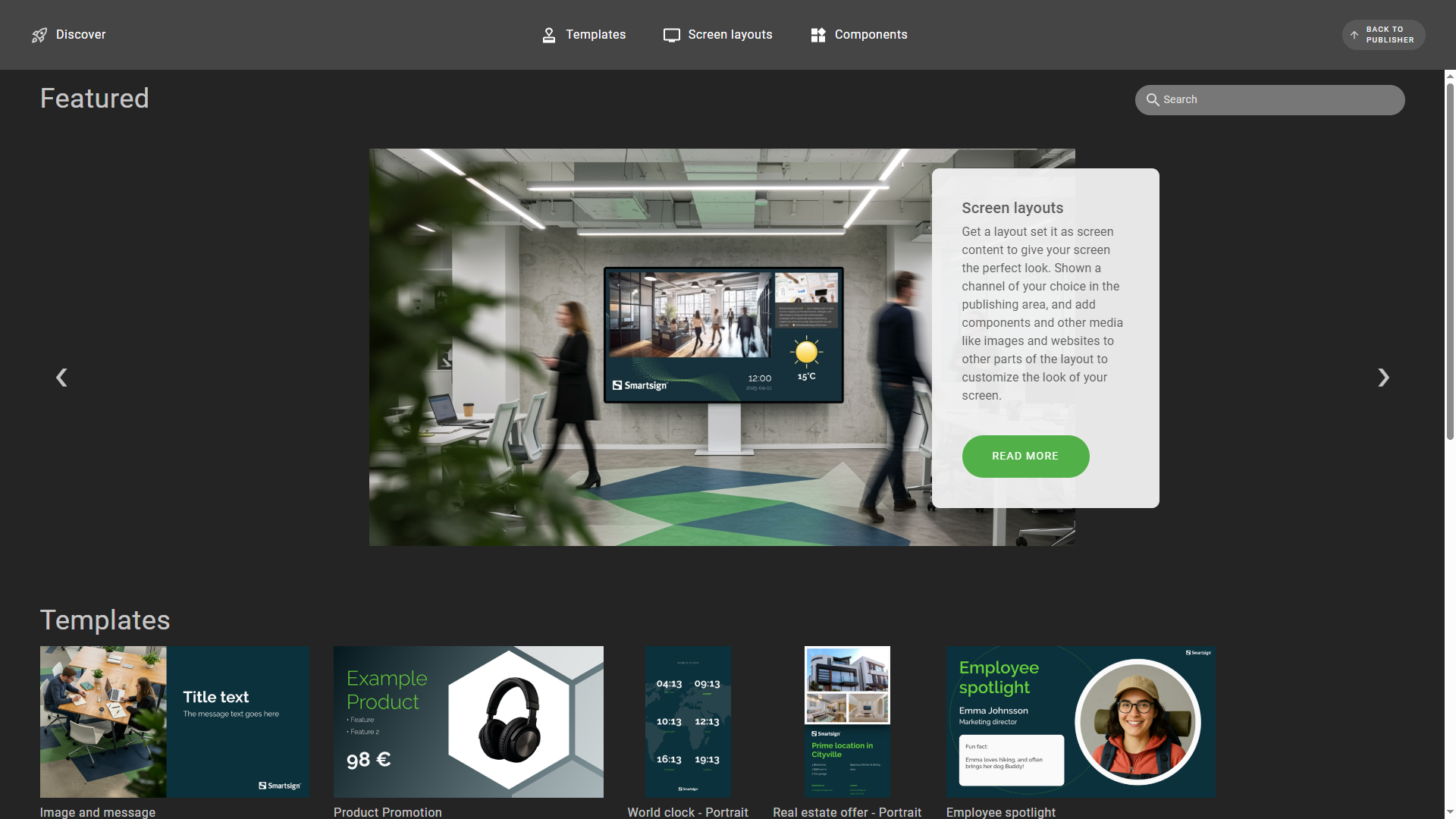
The Marketplace is where you can find new templates, screen layouts and other components that you can use to create content and customize the look and feel of your screens.
Open Marketplace at the bottom of the side menu. You can also use Get more templates in a template category, or Get more screen layouts and Get more screen layout components in the screen layout folders of the Media Library. Use Back to publisher to return.
You need the Marketplace access permission, which the default Site owner, Group admin and Publisher profiles have.
Marketplace library will grow with additional templates, screen layouts
and components so check regularly if you want access to the latest items.
Templates
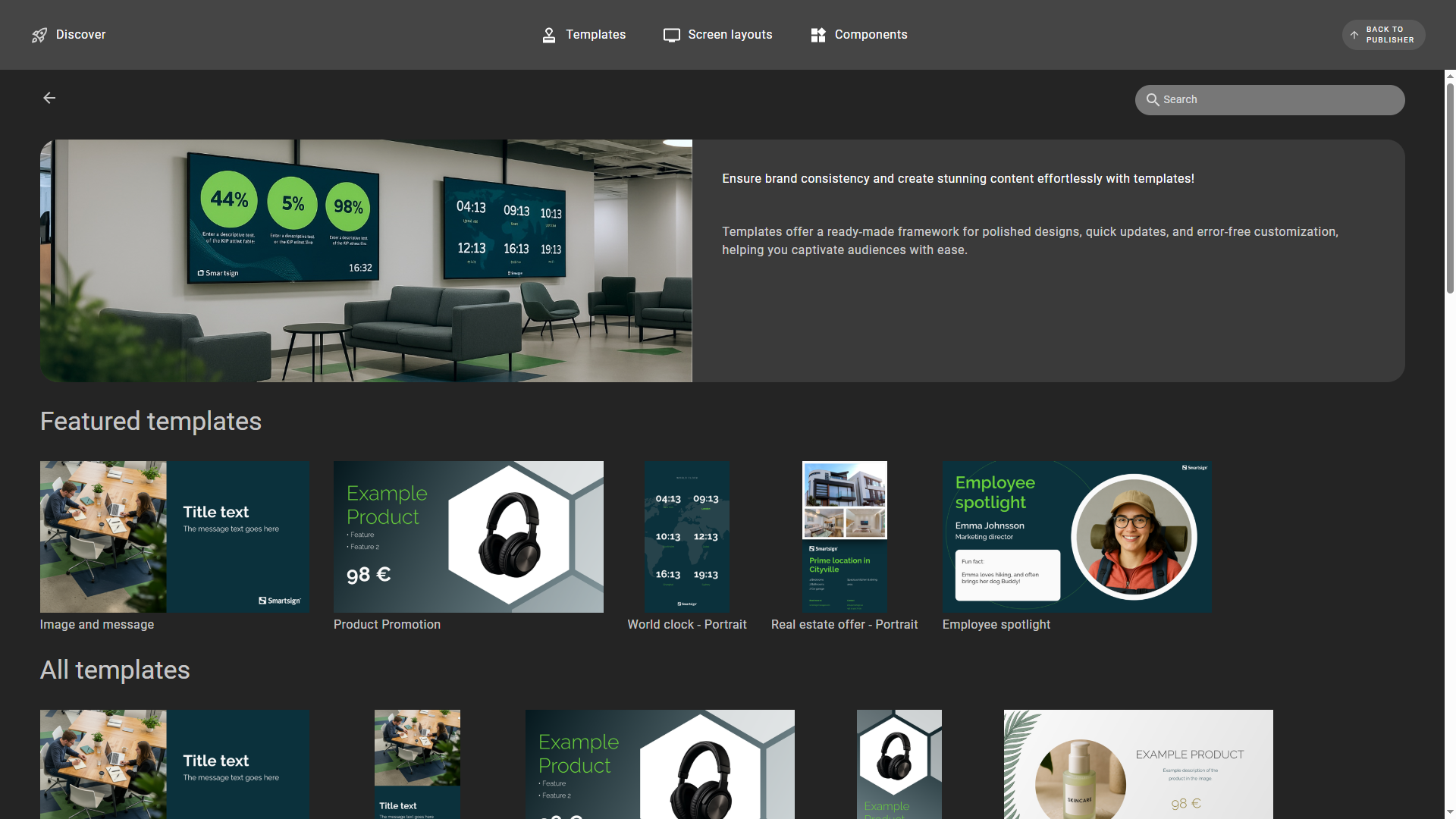
The templates offer a ready-made framework for polished designs, quick updates,
and error-free customization, helping you captivate audiences with ease.
Screen Layouts
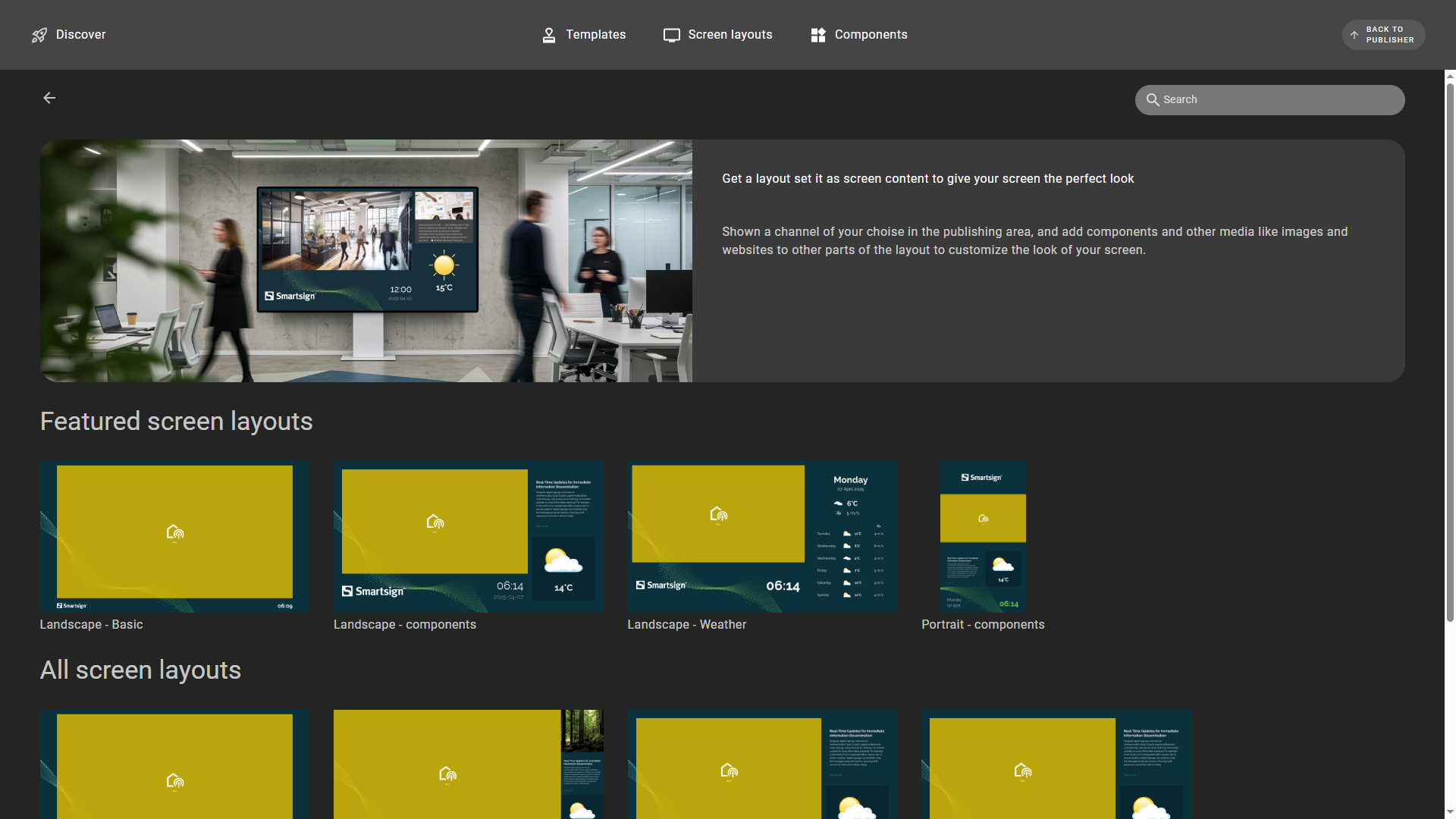
Screen layout allows you to show one or more channels to show
different information at the same time. You can also add components
like RSS news feeds, clock or weather on specific areas of your screen.
Components
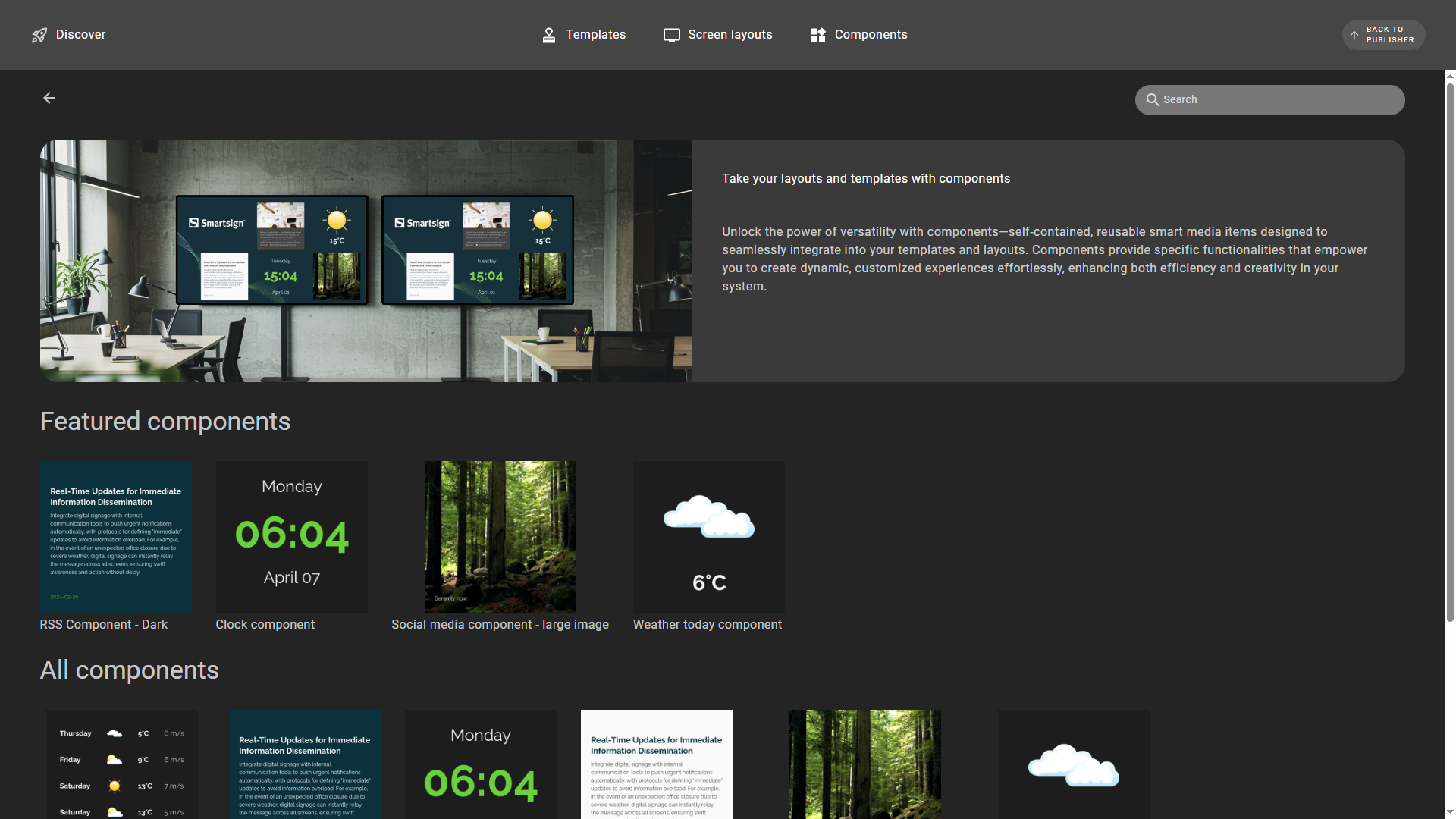
Components are ready-made items that you can integrate into a screen layout to display elements like a clock, weather updates, or news feeds alongside your channel content.
Additionally, you can use these components in regular smart media,
such as incorporating a clock into a lunch menu when using a fullscreen layout.
Download to site
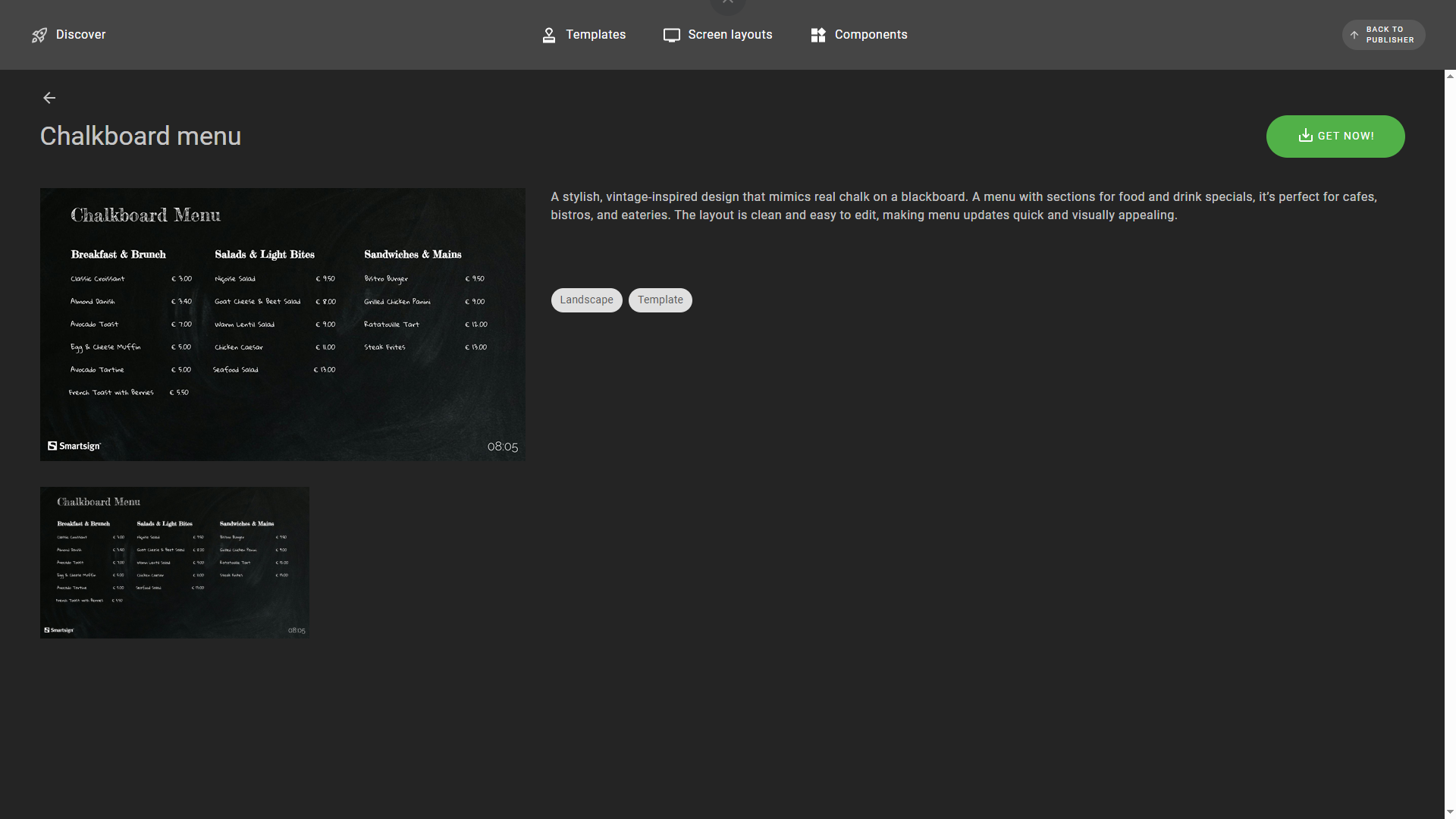
Browse available items in marketplace and when you find items you want to use, you can download the item to your site.
- Open the item and click Get now!
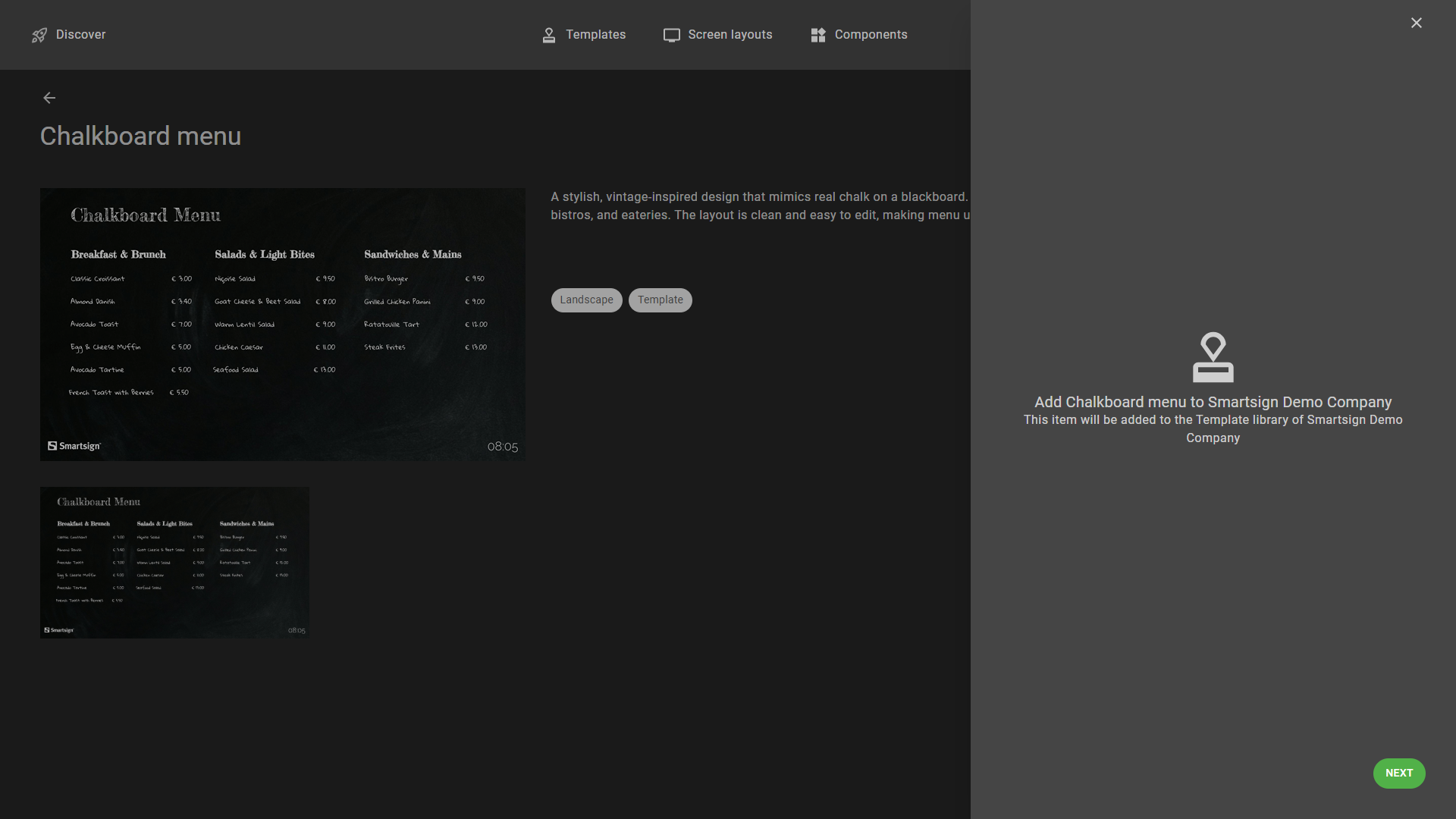
- The panel shows where the item will be added. Click Next to download it.
- If the item uses data sources, the panel shows Connect datasources. For each data source, a matching data source on your site is preselected. Choose another one, or Connect later, and click Add.
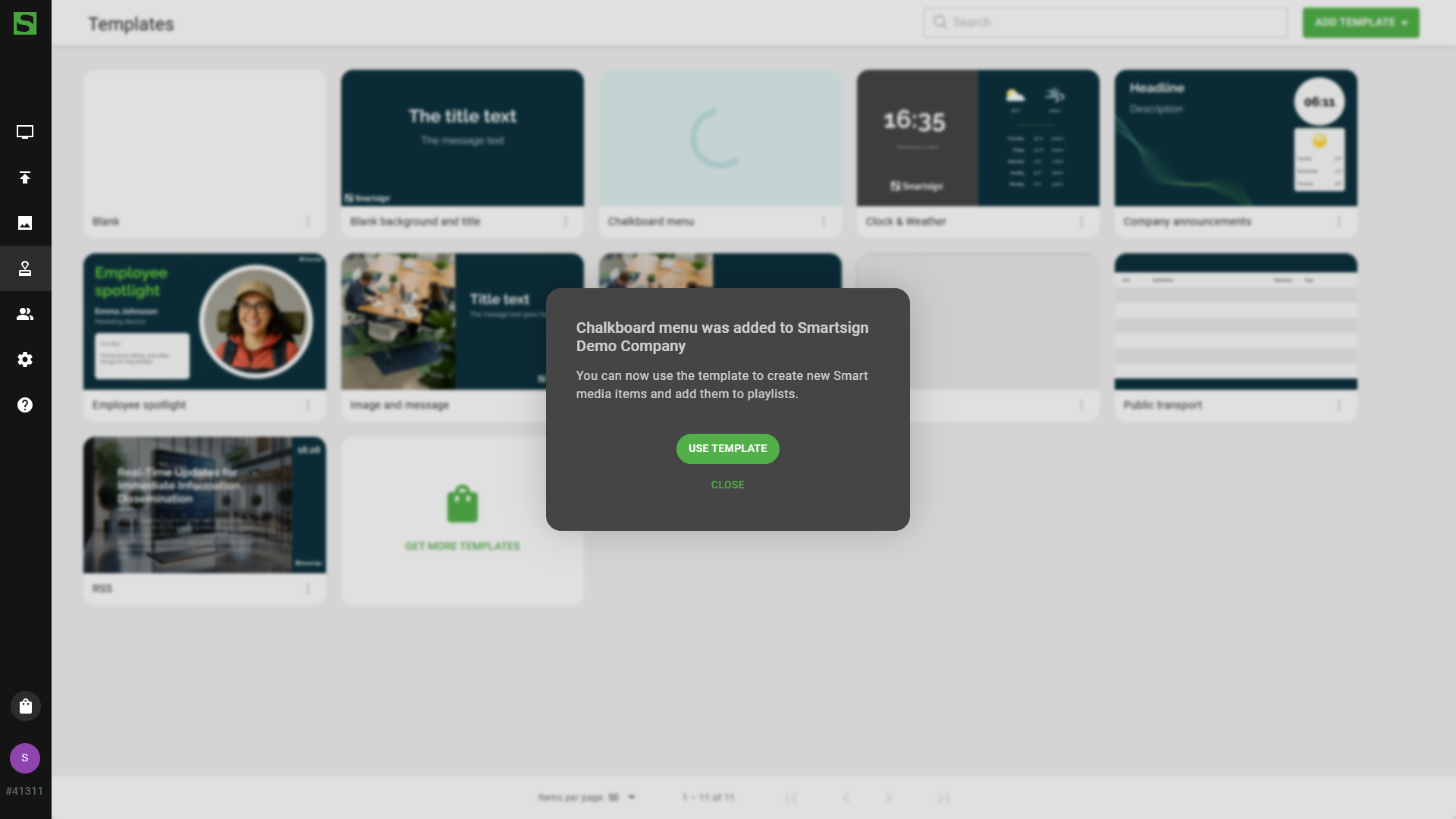
- When the item has been added, choose Go to publisher or Stay in marketplace.
A template is added to the template category you came from with Get more templates. Otherwise it is added to a category where you have Modify or Write access. If there is no such category, the panel says that you first need to add a template category with write or modify permission. Screen layouts are added to the Screen layouts folder and components to the Screen layout components folder. Go to publisher opens Templates or that folder.
If the item uses a data source and your site has none of that type, the panel says so. Create one under Templates -> Datasources first, or choose Connect later. To create a datasource, your user profile needs Create under Template datasource. If you can't create one, ask your administrator.
Getting a screen layout requires Edit under Screens in your user profile, which the default Site owner and Group admin profiles have. Otherwise Get now! is disabled.
Your site theme will be applied so the new item will match
your graphical profile.